Click Here To Read Course Registration Guide PDF
1. Visit the Student Portal
Go to: https://portal.mu.ac.ke
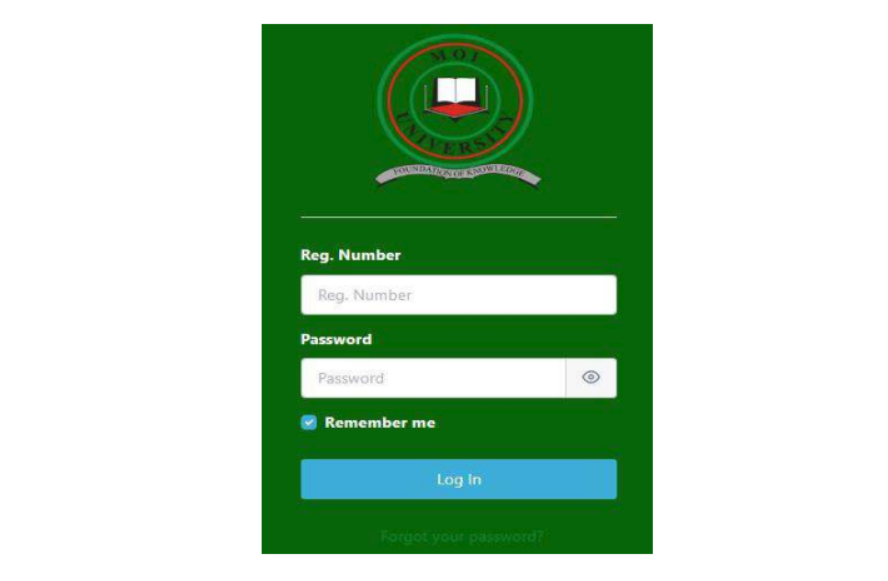
2. Log In
• Use your Registration Number as the username.
• Enter your password.
• Click Login.
NB: If you forgot your password, use the "Forgot password” to reset the password. A new password will be send to your email captured in the system during application.
Make sure you read the notification displayed and adhere to the instructions therein.
Close the notification to continue…
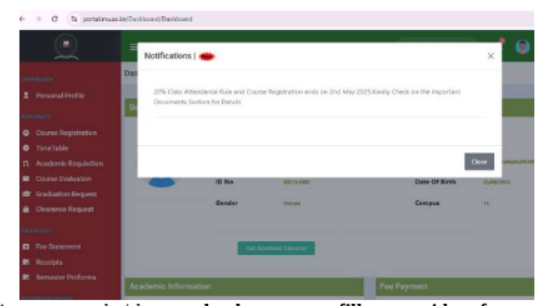
For one to register courses he/she must book a room or fill non-resident form.
Option1: Booking a Hostel Room
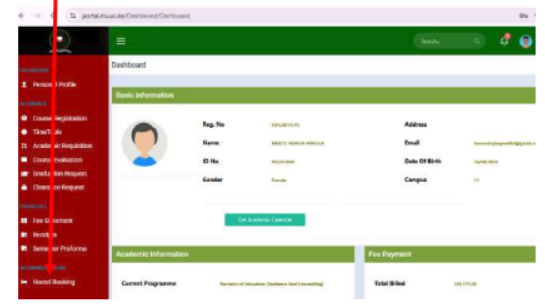
Navigate to Hostel Booking
On the dashboard, find the menu labelled “Accommodation” then
Click “Hostel Booking”.
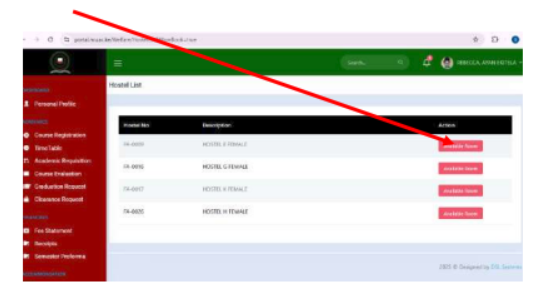
Choose Hostel
A list of available hostels, with names will appear as shown below.
Select your preferred hostel and room type.
Click “Available Room”.
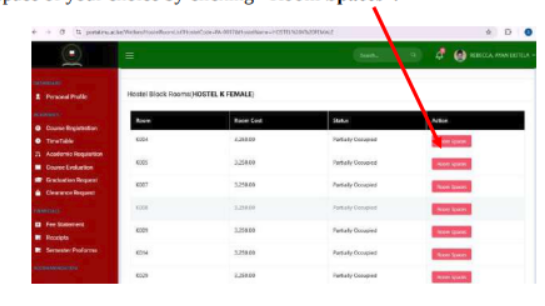
Select room space of your choice by clicking “Room Spaces”.
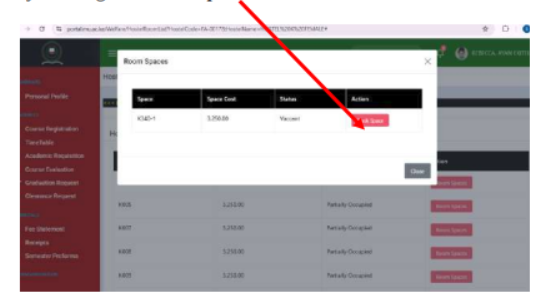
Book bed space by clicking on “Book Space” as shown below.
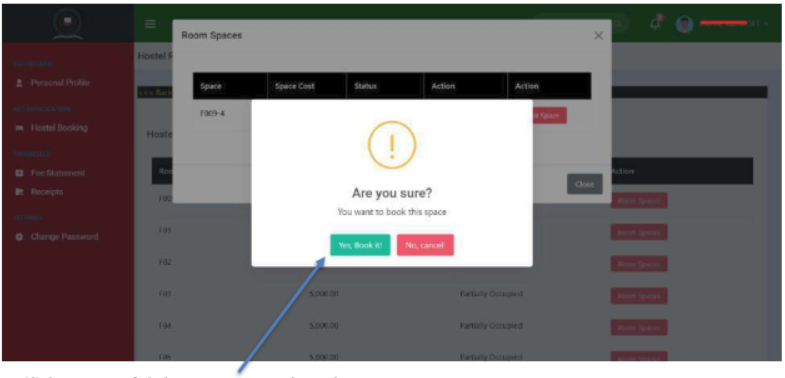
To confirm the booking click “Yes Book it” as shown below
Click to Print Hostel Invoice
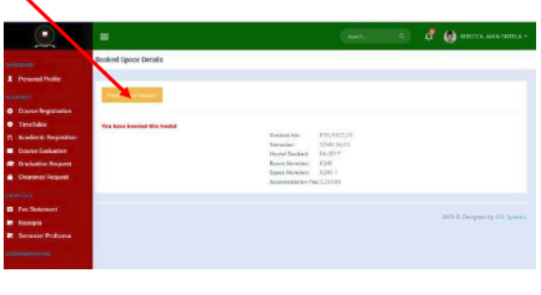
Click printer icon to print the invoice, if your computer is connected to a printer or
Download, save and print later.
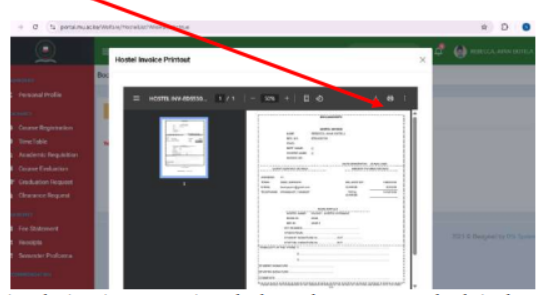
NB: After printing the invoice present it to the house keeper as you check-in the room
Option 2: Filling Non-Resident form
If you decide not to stay in the University’s hostel, you must fill a non-resident form and
submit.
Navigate to course registration as shown below.
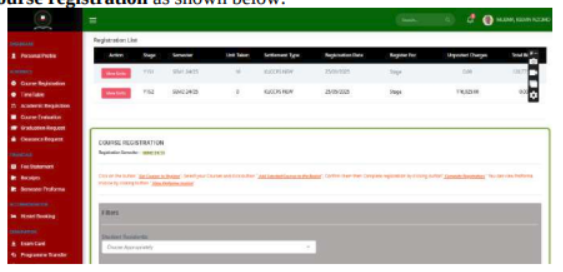
Under student Residents option, choose “Non-Resident”. This Non-Resident Form below will
pop-up
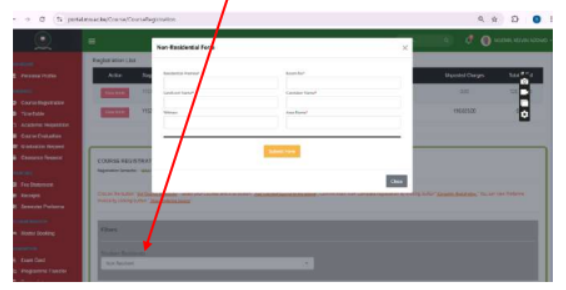
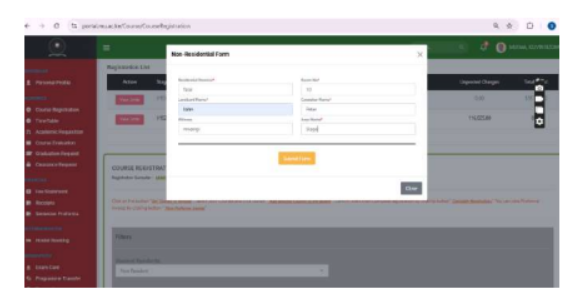
Fill Non-Residential details based on where you are staying. (These details can be obtained from
the landlord or caretaker of the room where you are renting).
Depending on the option, you chose: (Either booking room or filling non-resident form) you can
now register courses.
How to register Units/Courses
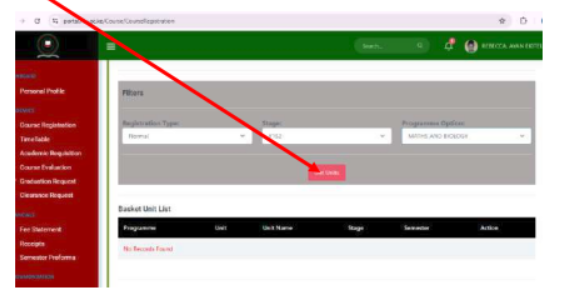
Navigate to Course Registration
• On the dashboard, find and click Course Registration.
• Select the registration type (e.g. normal for nominal roll or supplementary if registering
for supplementary exams).
• Choose your current stage (current year &semester) e.g. Y1S2, meaning year one
semester two etc.
NB: Some programmes e.g. in school of education requires you also to choose
programme option (your teaching subjects)
• Click Get Units
Select Units (Courses)
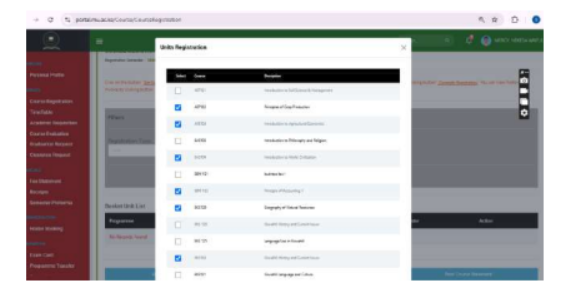
• You will see a list of available courses for your semester.
• Tick the box for each course you want to register as shown below.
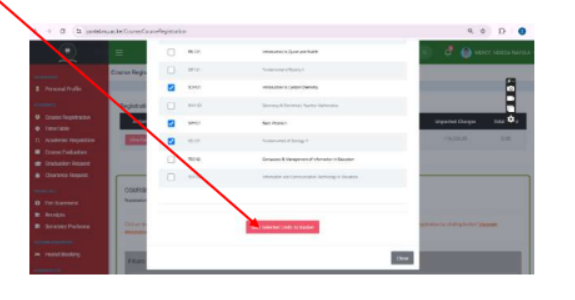
Click “Add Selected Units to the basket”
A summary will appear. Review your selected units before submitting.
After adding units to the basket click Complete Registration.
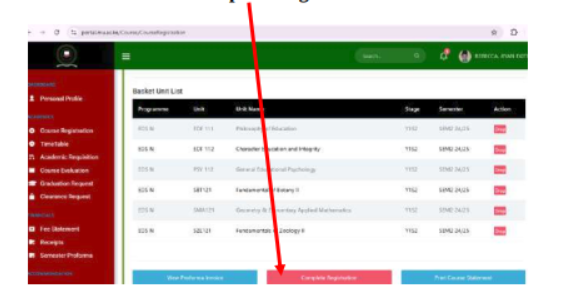
After Successful Registration of Units (courses), the message below will display.